Once your template is written and your data source is connected, inserting dynamic fields and applying conditional logic brings your automation to life.
Click to Zoom
Generating Letters and Labels in Mail Merge
1. Inserting Merge Fields
On the Mailings tab > Write & Insert Fields group:
Insert Merge Field: Clicking the downward arrow reveals all column names from your Excel sheet (First_Name, Address, Amount). Click to insert into your document.
Address Block: Inserts a pre-formatted standardized postal address block.
Greeting Line: Inserts formal greetings like "Dear Mr. Sharma," or "Dear Sir/Madam," automatically handling missing names.
2. Conditional Rules: The Power of IF...THEN...ELSE
You can make your letters dynamic based on recipient attributes! Click Mailings > Rules > If...Then...Else...:
Condition: If Gender Equal to M
Insert this text: Mr.
Otherwise insert this text: Ms.
Another Example: If Outstanding_Balance > 0, insert: "Please note your account is overdue." Otherwise insert: "Thank you for your timely payment!".
3. Previewing Results
Never click Finish without previewing!
Click the Preview Results button on the Mailings tab.
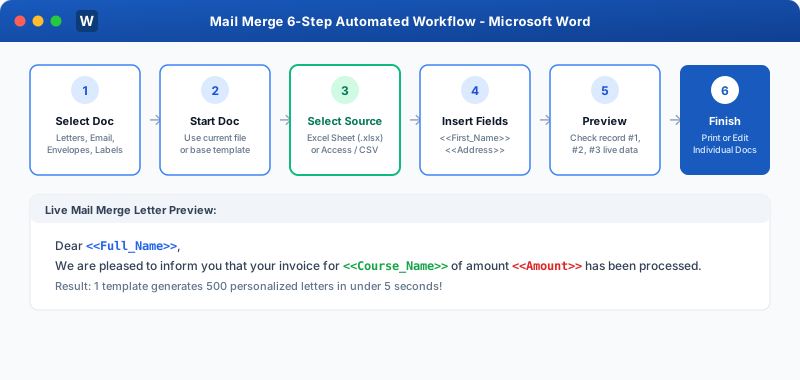
The placeholder chevrons <<First_Name>> disappear and are replaced by the actual live data of Recipient #1!
Use the record navigation buttons (◂, ▸, 1, 2, 3) to review individual letters.
4. Creating Mailing Labels (Avery Sheets)
1
Start a new document > Mailings > Start Mail Merge > Labels...
2
Select your label vendor (e.g. Avery A4/A5) and product number (e.g. L7163 - 14 per page).
3
Connect your data source.
4
Design the first top-left label (Insert <<Full_Name>>, <<Address>>, <<PIN>>).
5
Critical Step: Click Update Labels! Word copies the design to all 14 label cells on the sheet automatically, injecting <<Next Record>> tags!
6
Click Finish & Merge > Print.
5. Finalizing the Merge
Click Finish & Merge:
Edit Individual Documents: Generates a new Word document containing all merged letters for final review.
Print Documents: Sends all pages directly to the physical printer.
Send Email Messages: Transmits individual emails through Outlook.
Interactive Quiz• Knowledge Check
Multiple Choice Questions
Question 1
Which tool on the Mailings tab toggles between showing field placeholders (<<First_Name>>) and actual live recipient data?
Question 2
When generating mailing labels, which essential button copies your design from cell 1 to all other labels across the sheet?
Question 3
Which Mail Merge Rule allows inserting different sentences based on conditions (e.g. overdue notices)?
Question 4
What tag appears automatically between label cells to instruct Word to advance to the next recipient?
Question 5
Which "Finish & Merge" option creates a complete new multi-page document allowing manual inspection before printing?
Next Lesson
Recording & Running Macros
Continue learning with hands-on practice, examples, and exercises in the upcoming topic.
 Click to Zoom