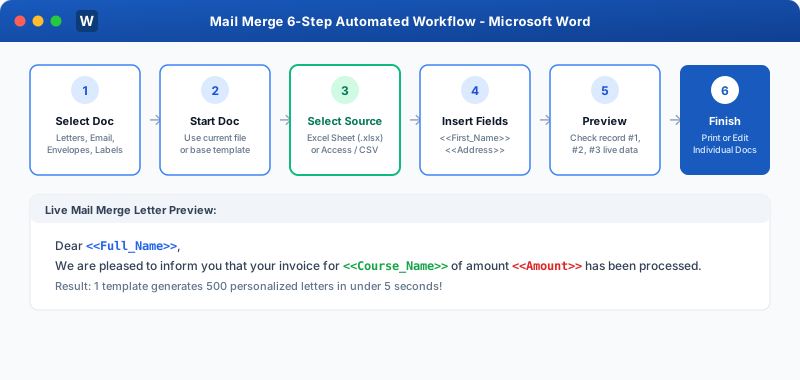
The accuracy of a Mail Merge depends entirely on the cleanliness of your data source. Microsoft Word allows you to link external databases, filter recipients by specific criteria, and remove duplicate entries.
Click to Zoom
Connecting Excel Data Sources to Mail Merge
1. Best Practices for Preparing an Excel Data Source
Before connecting an Excel sheet to Word:
1
Row 1 Must Be Headers: Row 1 of your Excel sheet should contain clean column headers: First_Name, Last_Name, Address, City, State, Fees_Due, Email.
2
No Blank Rows at the Top: Never put title banners or empty rows above Row 1!
3
Separate Data Fields: Keep First Name and Last Name in separate columns so you can greet recipients as "Dear Rahul," rather than "Dear Rahul Sharma,".
4
Close Excel: Save and close the Excel workbook before connecting in Word (Word cannot establish an exclusive OLE/ODBC connection if Excel locks the file open!).
2. Connecting the Data Source in Word
1
Open your master template in Word.
2
Go to Mailings tab > click Select Recipients > choose Use an Existing List...
3
Browse and select your Excel workbook (.xlsx).
4
Select the specific worksheet tab (e.g. Sheet1$) and ensure First row of data contains column headers is checked.
5
Click OK. The Mailings tab buttons will instantly illuminate and activate!
3. Filtering & Sorting Recipients
You don't have to merge everyone in your database! Click Mailings > Edit Recipient List:
Checkboxes: Uncheck individual people you wish to skip.
Filter...: Set conditions:
Example: City Equal to Delhi AND Fees_Due Greater than 0.
Only students in Delhi with pending dues will be generated!
Sort...: Sort alphabetically by Last_Name Ascending, or by PIN_Code (to qualify for bulk postal discounts!).
Find Duplicates: Automatically scans and detects duplicate email addresses or student IDs.
Interactive Quiz• Knowledge Check
Multiple Choice Questions
Question 1
Why should you close your Excel spreadsheet file before connecting it to Word Mail Merge?
Question 2
What should always be placed in Row 1 of an Excel sheet intended for Mail Merge?
Question 3
Where can you filter recipients (e.g. only generate letters for people in "Delhi")?
Question 4
Which option under "Select Recipients" allows you to type new contact details directly inside Word without Excel?
Question 5
Can Mail Merge sort records by Postal Code automatically before printing envelopes?
Next Lesson
Generating Letters, Labels, Envelopes
Continue learning with hands-on practice, examples, and exercises in the upcoming topic.
 Click to Zoom