Formulas in Tables0%

Formulas in Tables

Beginner12 min readUpdated: Jul 11, 2026
Study Materials

Formulas in Tables

Calculations in Word: Table Formulas

You don't always need to launch Microsoft Excel just to total an invoice or calculate an average test score. Microsoft Word includes a built-in calculation engine supporting spreadsheet functions and positional references.
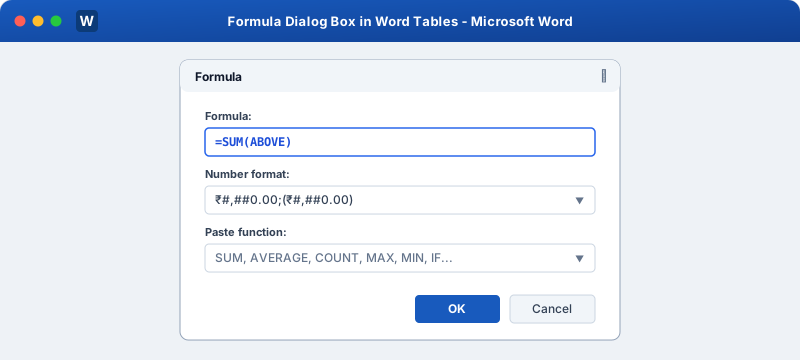
Formula Dialog Box and Calculations in Word TablesClick to Zoom
Formula Dialog Box and Calculations in Word Tables

1. The Formula Dialog Box

  1. 1
    Place your cursor inside the table cell where you want the calculated result to appear.
  2. 2
    Navigate to Layout tab (under Table Tools) > click the Formula (fx) button in the Data group.
  3. 3
    The Formula dialog box opens, automatically guessing your calculation (e.g. =SUM(ABOVE)).
  4. 4
    Select your Number format (e.g. $#,##0.00 or ₹#,##0.00).
  5. 5
    Click OK. Word calculates the result and displays the formatted total!

2. Positional Direction References

Instead of typing exact cell coordinates, Word supports intuitive positional directions:

Direction FormulaBehavior
=SUM(ABOVE)Adds all continuous numbers in the column directly above the cell.
=SUM(LEFT)Adds all continuous numbers in the row directly to the left of the cell.
=SUM(BELOW)Adds all numbers directly below the cell.
=SUM(RIGHT)Adds all numbers directly to the right of the cell.
=AVERAGE(ABOVE)Computes the statistical mean of numbers directly above.
=COUNT(ABOVE)Counts how many numeric entries are listed in the column above.

3. Excel-Style Cell Coordinates in Word

Word tables follow the exact same coordinate system as Excel:

  • Columns are lettered from left to right: A, B, C, D...
  • Rows are numbered from top to bottom: 1, 2, 3, 4...
  • Top-left cell = A1, second column third row = B3.

Supported Mathematical Formulas

  • Addition: =A1 + B1
  • Subtraction: =B2 - C2
  • Multiplication: =C2 * D2 (Quantity $\times$ Unit Price)
  • Division: =E10 / 12
  • Conditional: =IF(A1 > 50, A1 * 0.1, 0)

4. Updating Table Formulas (F9)

Unlike Excel, Word does not recalculate formulas in real time automatically when you change a cell's number. To update calculations after changing data:

  1. 1
    Click the calculated cell (or press Ctrl + A to select the whole document).
  2. 2
    Press the F9 function key (or right-click the number > click Update Field). Word immediately recalculates the sum!

Multiple Choice Questions

1. Which formula calculates the total sum of all numbers situated vertically above the active table cell?

A. =TOTAL(UP) B. =SUM(ABOVE) C. =ADD(TOP) D. =CALC(ABOVE) Answer: B Explanation: =SUM(ABOVE) is Word's built-in formula to add all numbers in the column above.


2. How are table cell coordinates identified in Microsoft Word formulas?

A. Row letter then Column number (e.g. 1A) B. Column letter then Row number (e.g. A1, B2) C. Numbers only (1, 1) D. Cell IDs Answer: B Explanation: Word uses standard spreadsheet notation: Column letter followed by Row number (A1, B2).


3. What function key updates/recalculates formulas in a Word table after you modify cell numbers?

A. F2 B. F5 C. F9 D. F12 Answer: C Explanation: Pressing F9 recalculates active fields and formulas in Microsoft Word.


4. Which formula multiplies cell C2 by cell D2 to calculate an item subtotal in Word?

A. =MULTIPLY(C2, D2) B. =C2 D2 C. =PROD(C2:D2) D. =C2 x D2 Answer: B Explanation: =C2 D2 uses standard multiplication syntax inside Word table formula expressions.


5. Where on the Ribbon is the "Formula (fx)" button located?

A. Insert > Equation B. Table Tools > Layout > Data group C. Home > Font D. References > Math Answer: B Explanation: The Formula tool is found under Table Tools > Layout in the Data group.


Next Lesson

Table Styles & Design

Continue learning with hands-on practice, examples, and exercises in the upcoming topic.

Related Lessons

Practice Quiz

Test your understanding of this lesson with 5 questions. Each question has one correct answer.

PrevNext