If you find yourself executing the same sequence of 15 formatting steps every morning (setting margins to Narrow, adding a company title, changing font to 12pt Calibri, inserting a date header), you can record a Macro.
A Macro is a saved series of commands and instructions that can be played back automatically with a single click or keyboard shortcut.
Click to Zoom
Recording and Running Macros in Word
1. Activating the Developer Tab
By default, Word hides the Developer tab:
1
Right-click anywhere on the Ribbon > click Customize the Ribbon...
2
In the right-hand column under Main Tabs, check the Developer checkbox.
3
Click OK. The Developer tab now appears permanently on your Ribbon!
2. Recording a Macro Step-by-Step
1
Navigate to Developer tab (or View tab) > click Record Macro.
2
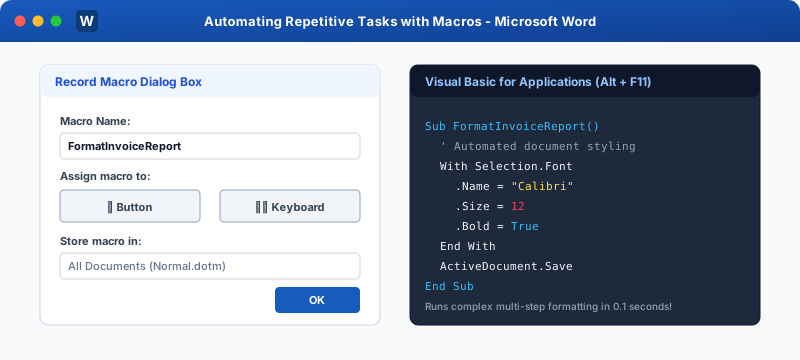
In the dialog box:
Macro name: Enter a name without spaces (e.g. FormatDailyReport).
Assign macro to: Choose Button (for QAT) or Keyboard (e.g. assign shortcut Alt + Shift + R).
Store macro in:
All Documents (Normal.dotm): The macro will be available in every Word document you ever open on your computer!
Current Document: The macro is saved only inside this specific file.
Description: Document what the macro accomplishes.
1
Click OK.
2
Notice your mouse pointer now displays a small cassette tape icon!
3
Carefully perform the actions you wish to automate (e.g., set margins, apply styles, insert a table).
4
When finished, go to Developer > Stop Recording (or click the small square stop button on the bottom Status Bar).
3. Running Your Macro
Whenever you want to repeat that sequence:
Press the assigned keyboard shortcut (e.g. Alt + Shift + R), OR
Go to Developer > Macros, select FormatDailyReport, and click Run.
Word executes all 15 actions in under 0.1 seconds!
Important Warning
The mouse cannot be used to select text during macro recording! You must use keyboard navigation keys (Shift + Arrow keys, Ctrl + Home) to select text while recording.
Interactive Quiz• Knowledge Check
Multiple Choice Questions
Question 1
Which Ribbon tab is specifically dedicated to advanced developer tools, XML, and VBA Macros?
Question 2
Where should you store a recorded macro if you want it accessible across ALL documents on your PC?
Question 3
What visual indicator appears next to the mouse pointer while a Macro is actively recording?
Question 4
Why must you use keyboard arrow keys rather than the mouse to select text while recording a macro?
Question 5
What file extension must be used when saving a Word document containing active embedded Macros?
Next Lesson
Assigning Macros to Buttons
Continue learning with hands-on practice, examples, and exercises in the upcoming topic.
 Click to Zoom