Securing your computer, web browser, and email inbox is the foundational first line of defense in cybersecurity. In Hindi, hum ise kehte hain "Apne computer aur data ka digital tala aur chabi lagana". In today's interconnected digital world, an unprotected PC can easily be infected with malwares, have private photos and passwords stolen, or be hijacked into a botnet.
Click to Zoom
Cyber Security & Protection
1. Securing Your Personal Computer (PC)
To secure a Windows or Linux computer from external and internal threats:
1
Keep Operating System Updated: Always enable automatic Windows Updates. Operating system updates contain essential "Security Patches" (suraksha sudhar) that fix vulnerabilities discovered by hackers.
2
Built-in Antivirus & Firewall:
Windows Defender (Microsoft Defender): Windows includes a built-in, highly effective antivirus that provides real-time protection against viruses, trojans, and spyware.
Windows Firewall: Acts as a security guard (suraksha prahari) that monitors incoming and outgoing network traffic. It blocks unauthorized hackers on the internet from connecting directly to your computer ports.
1
User Account Control (UAC) & Standard User Accounts:
Never run daily tasks using the Administrator account. Use a standard user account so accidental malware downloads cannot silently install system-wide software without prompt.
1
Regular Data Backup (3-2-1 Rule):
Keep 3 copies of important data on 2 different media (e.g., internal hard drive + external pen drive/SSD), with 1 copy stored off-site or in cloud storage (Google Drive / OneDrive).
2. Securing Web Browsers (Chrome, Edge, Firefox)
Your web browser is your gateway to the internet, making it a prime target for attackers:
Security Feature
How It Works & Best Practice
Why It Matters
HTTPS Padlock
Always check for https:// and a locked padlock icon in the address bar.
Encrypts passwords and credit card data between your PC and the server.
Incognito / Private Mode
Shortcut: Ctrl + Shift + N (Chrome/Edge) or Ctrl + Shift + P (Firefox).
Does NOT save browsing history, cache, or form data on the local PC. (Great on cyber cafes!)
Block Pop-ups & Redirects
Enable popup blocker in Browser Settings.
Prevents deceptive advertisements and fake "Your PC is Infected!" scareware alerts.
Clear Cookies & Cache
Shortcut: Ctrl + Shift + Del. Clear cookies periodically.
Removes tracking cookies and stored login sessions from shared computers.
Beware of Untrusted Extensions
Only install browser extensions from the official Chrome Web Store.
Rogue extensions can silently read keystrokes and steal passwords.
Click to Zoom
Cyber Security Threats and Safe Practices
3. Securing Email Communications
Email is the most common channel used by cybercriminals to deliver malware and launch phishing attacks:
1
Never Open Suspicious Attachments: Malicious attachments often masquerade with fake double extensions like Invoice.pdf.exe or infected macro-enabled spreadsheets (.xlsm). If an unknown sender sends an attachment, do not download or open it.
2
Two-Factor Authentication (2FA) on Email:
Your email account (Gmail / Outlook) holds password reset links for all your other accounts (bank, social media, Digilocker).
Enabling 2FA (Two-Step Verification) ensures that even if someone steals your password, they cannot log in without the OTP or biometric prompt sent to your mobile phone.
1
Beware of Spoofed Email Addresses: Hackers often mimic official company names (e.g., support@sbl-bank.com instead of sbi.co.in). Always inspect the full sender address carefully before trusting the email.
2
Spam & Junk Filter: Regularly mark spam emails as Spam so your email provider's artificial intelligence learns to filter them automatically.
Summary Checklist for Daily Security
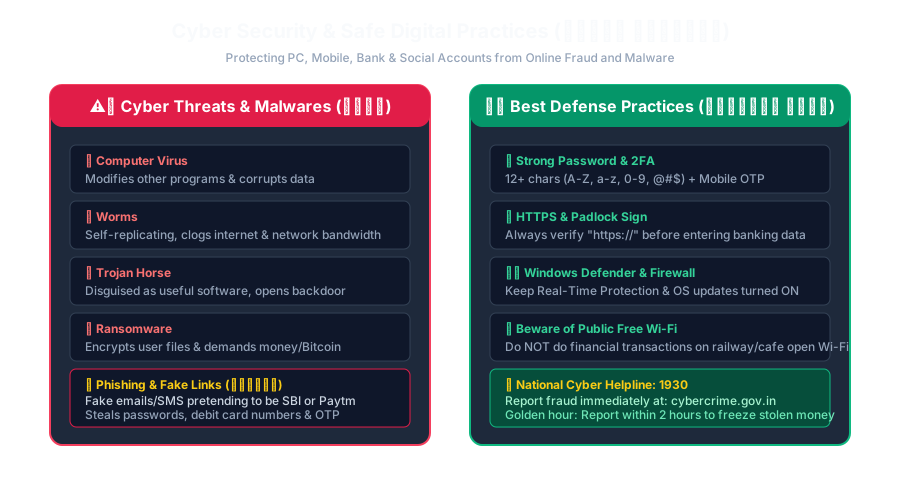
Keep Windows Defender Real-Time Protection and Firewall turned ON.
Use Incognito Mode (Ctrl + Shift + N) when surfing on cyber cafe or college lab computers.
Never download pirated cracked software or torrent files, as they almost always contain embedded trojans.
Turn ON Two-Step Verification (2FA) on your Google / Gmail account immediately.
Interactive Quiz• Knowledge Check
Multiple Choice Questions
Question 1
Which built-in Windows utility acts as a barrier to block unauthorized incoming and outgoing internet traffic?
Question 2
In LibreOffice or web browsers like Google Chrome, which shortcut opens a Private / Incognito browsing window?
Question 3
What does the 's' stand for in 'https://' seen in browser address bars?
Question 4
What is the primary purpose of Two-Factor Authentication (2FA)?
Question 5
Why should a user avoid opening email attachments with extensions like '.exe' or '.scr' from unknown senders?
Next Lesson
Social Media Safety and Password Protection
Continue learning with hands-on practice, examples, and exercises in the upcoming topic.
 Click to Zoom
 Click to Zoom