Typography sets the visual tone and readability of any document. Microsoft Word provides comprehensive character formatting tools on the Home tab within the Font group, allowing you to customize font family, sizing, color palettes, and highlights.
Click to Zoom
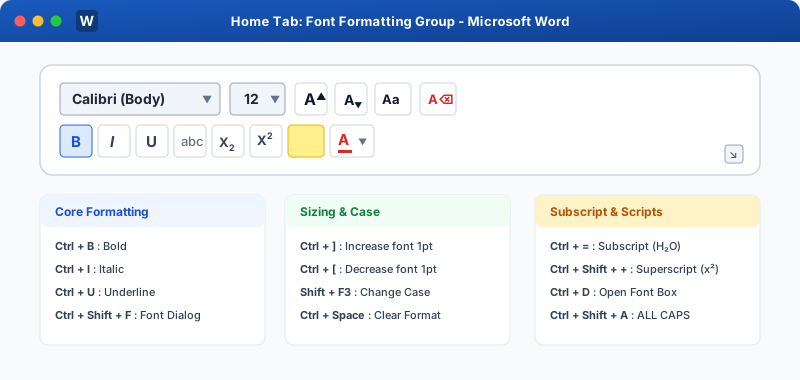
Home Tab Font Formatting Controls
1. Font Families (Typefaces)
Fonts are broadly categorized into two major styles:
Serif Fonts (e.g., Times New Roman, Georgia, Garamond): Contain small decorative strokes or feet at the ends of letters. Highly recommended for formal printed books, legal documents, and printed reports.
Sans-Serif Fonts (e.g., Calibri, Arial, Segoe UI, Aptos): Clean, modern strokes without decorative feet. Excellent for digital reading, screen displays, and corporate presentations.
2. Adjusting Font Size
Font size in Microsoft Word is measured in points (pt), where $72\text{ points} = 1\text{ inch}$:
Standard Body Text: 11pt to 12pt
Subheadings (Heading 2): 14pt to 16pt
Primary Titles (Heading 1): 18pt to 24pt
Sizing Shortcuts
Increase Font Size by 1pt: Ctrl + ]
Decrease Font Size by 1pt: Ctrl + [
Grow Font (preset ladder): Ctrl + Shift + >
Shrink Font (preset ladder): Ctrl + Shift + <
3. Font Color & Highlighting
Font Color Button (A with red underline): Changes the actual color of your characters. Clicking the downward arrow reveals Theme Colors (coordinated palettes) and Standard Colors, along with a More Colors picker (HEX / RGB values).
Text Highlight Color Button (Marker icon): Simulates a physical fluorescent highlighter pen. Highlighted text retains its highlight background even if copied across paragraphs. To remove, select the text, click the highlight arrow, and choose No Color.
The Full Font Dialog Box (Ctrl + D)
Pressing Ctrl + D or Ctrl + Shift + F opens the comprehensive Font dialog box, containing advanced options:
Font Tab: Font name, style (Regular, Italic, Bold), size, font color, underline style, underline color, and effects (Strikethrough, Double Strikethrough, Small Caps, All Caps, Hidden).
Advanced Tab: Character spacing (Expanded / Condensed by exact points), Kerning for fonts, and baseline positioning (Raised / Lowered).
Interactive Quiz• Knowledge Check
Multiple Choice Questions
Question 1
Which shortcut increases font size by exactly 1 point at a time?
Question 2
What keyboard shortcut opens the full Font dialog box in Microsoft Word?
Question 3
In typography, how many points (pt) are equal to exactly one inch in print?
Question 4
Which font style features small decorative feet at the end of letter strokes?
Question 5
How do you completely remove a fluorescent highlight from selected text in Word?
Next Lesson
Bold, Italic, Underline & Effects
Continue learning with hands-on practice, examples, and exercises in the upcoming topic.
 Click to Zoom