MS Word Interface Overview0%

MS Word Interface Overview

Beginner12 min readUpdated: Jul 11, 2026
Study Materials

MS Word Interface Overview

The Modern Microsoft Word Workspace

Microsoft Word is the world's most popular word processing software. Whether creating professional letters, resumes, comprehensive business reports, or academic research papers, understanding the primary elements of the Word workspace enables you to navigate tools effortlessly and work with speed.
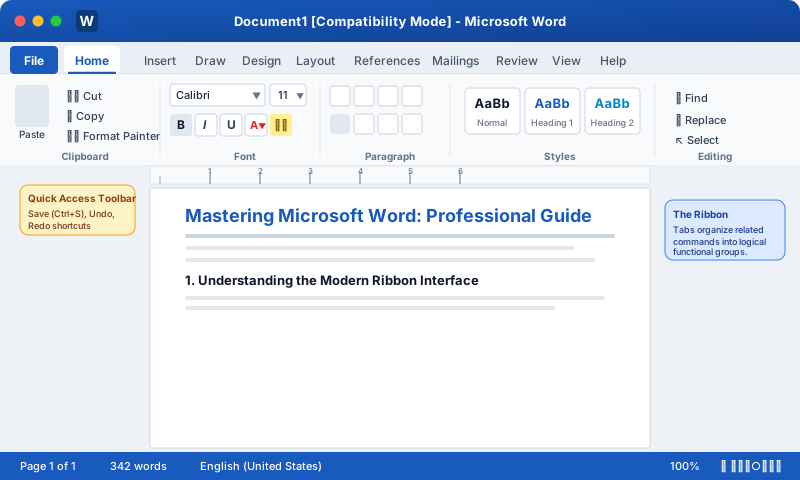
Microsoft Word Complete Interface OverviewClick to Zoom
Microsoft Word Complete Interface Overview

Primary Components of the MS Word Screen

The Microsoft Word interface consists of six core functional zones:

  1. 1
    Title Bar: Located at the very top of the window, displaying the active document name (e.g., Document1 - Word), the Search/Tell Me bar, and standard window management buttons (Minimize, Maximize/Restore, and Close).
  2. 2
    Quick Access Toolbar (QAT): Positioned above or below the Ribbon, providing one-click access to essential commands like Save (Ctrl + S), Undo (Ctrl + Z), and Redo (Ctrl + Y).
  3. 3
    The Ribbon: The central command center spanning horizontally below the title bar. It organizes related commands into logical Tabs (File, Home, Insert, Layout, etc.) and functional Groups (Font, Paragraph, Styles).
  4. 4
    Horizontal & Vertical Rulers: Positioned at the top and left margins of the document canvas. Rulers allow you to visually align text, adjust margin indents, and configure tab stops with pixel-perfect precision.
  5. 5
    Document Canvas (Working Area): The white page area representing your physical print page where you draft, edit, and design your content.
  6. 6
    Status Bar: Positioned at the bottom border, reporting real-time document metrics such as active page number, total page count, word count, proofing/language status, view mode toggles (Read Mode, Print Layout, Web Layout), and the interactive Zoom slider.
Interface ComponentDefault LocationPrimary Function & Shortcuts
Title BarTop BorderDisplays file name, user account & search (Alt + Q)
Quick Access ToolbarTop LeftInstant access to Save, Undo, Redo, Print Preview
Ribbon TabsBelow Title BarHigh-level functional categories (Home, Insert, Layout)
Command GroupsInside TabsClustered tools with optional Dialog Box Launchers ()
RulersTop & Left MarginMargin indicators, tab stops, and indent sliders
Document CanvasCenter ScreenMain typing and graphic editing viewport
Status BarBottom BorderPage count, word count, view modes & zoom slider (10%-500%)
Pro Tip
If the horizontal or vertical ruler is missing from your screen, navigate to the View tab on the Ribbon and check the Ruler checkbox in the Show group.

Customizing the Quick Access Toolbar

You can customize the Quick Access Toolbar to hold any tool you frequently use:

  1. 1
    Click the small downward arrow icon at the right edge of the Quick Access Toolbar.
  2. 2
    Select popular tools from the dropdown menu, such as Quick Print, Email, or New Blank Document.
  3. 3
    To add any command from the Ribbon, simply Right-Click the command icon and select Add to Quick Access Toolbar.

Multiple Choice Questions

1. Which component of the MS Word window displays the active document name?

A. Status Bar B. Title Bar C. Ribbon D. Ruler Answer: B Explanation: The Title Bar is positioned at the top of the window and displays the current document name alongside application controls.


2. What is the default shortcut to save a document in MS Word?

A. Ctrl + P B. Ctrl + S C. Ctrl + D D. Alt + F4 Answer: B Explanation: Ctrl + S triggers the Save or Save As command to immediately write updates to storage.


3. Where on the MS Word screen can you check the total word count and current page number?

A. Status Bar B. Ribbon Font Group C. Quick Access Toolbar D. Title Bar Answer: A Explanation: The Status Bar at the bottom border provides real-time counts for current page, total words, language, and the zoom slider.


4. Under which Ribbon tab can you enable or disable the display of the on-screen Ruler?

A. Home B. Insert C. View D. Layout Answer: C Explanation: The View tab contains the Show group, where checkboxes for Ruler, Gridlines, and Navigation Pane are toggled.


5. What is the maximum zoom percentage supported in Microsoft Word?

A. 100% B. 200% C. 400% D. 500% Answer: D Explanation: Microsoft Word allows document canvas zooming from a minimum of 10% up to a maximum of 500% via the Zoom slider.


Next Lesson

Ribbons, Tabs & Quick Access Toolbar

Continue learning with hands-on practice, examples, and exercises in the upcoming topic.

Related Lessons

Previous LessonNext Lesson
NoneRibbons, Tabs & Quick Access Toolbar

Practice Quiz

Test your understanding of this lesson with 5 questions. Each question has one correct answer.

Next