The Ribbon is designed to help you quickly find the commands that you need to complete a task. Introduced to replace legacy menus and toolbars, the Ribbon organizes Microsoft Word's hundreds of commands into an intuitive hierarchical layout.
Click to Zoom
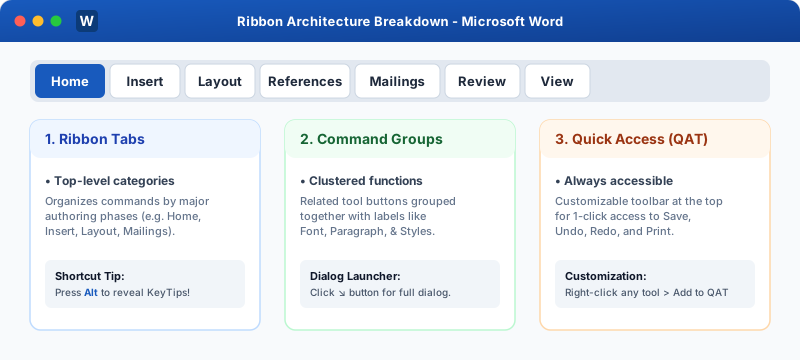
Microsoft Word Ribbon Tabs and Quick Access Architecture
The Three Structural Levels of the Ribbon
1
Tabs: Major functional phases of document preparation:
File: Backstage view for opening, saving, printing, sharing, exporting, and application configuration.
Home: The most frequently used tools—Clipboard, Font formatting, Paragraph alignment, Styles, and Editing.
Insert: Adding pages, tables, images, shapes, SmartArt graphics, charts, headers, footers, text boxes, and symbols.
Draw: Freehand sketching, highlighter pens, ink-to-shape, and math converters.
Design: Global document formatting themes, color palettes, font pairings, watermarks, and page borders.
Layout: Page orientation, margins, paper sizes, multi-column columns, indents, and section breaks.
References: Table of Contents, footnotes, endnotes, citations, bibliography, captions, and index generation.
Mailings: Mail Merge wizard, address labels, envelope printing, and recipient filtering.
Review: Spell check & grammar, thesaurus, word count, translation, comments, and Track Changes.
View: Print layout, web layout, focus mode, split windows, rulers, navigation pane, and macros.
1
Command Groups: Within each tab, tools are clustered into functional groups separated by subtle vertical dividers. For example, the Home tab contains the Clipboard, Font, Paragraph, Styles, and Editing groups.
1
Dialog Box Launchers (↘): Located at the bottom-right corner of many command groups. Clicking this small arrow icon opens the complete, detailed dialog box (such as the full Font or Paragraph dialog box) with advanced options not shown on the compact ribbon strip.
Contextual Tabs (Smart Tabs)
Contextual tabs only appear when a specific object on your canvas is selected:
Table Tools (Design & Layout): Appears only when your cursor is inside a table cell.
Picture Format: Appears when an image or graphic is selected.
Shape Format / SmartArt Design: Appears when vector shapes or diagrams are active.
Keyboard Navigation via KeyTips
You can control every tool on the Ribbon without touching your mouse using KeyTips:
1
Press the Alt key on your keyboard.
2
Word displays small letter or number badges over each tab:
Alt + H opens the Home tab.
Alt + N opens the Insert tab.
Alt + P opens the Layout tab.
Alt + M opens the Mailings tab.
Alt + R opens the Review tab.
1
Once on a tab, press the displayed letter key to execute the desired command.
Interactive Quiz• Knowledge Check
Multiple Choice Questions
Question 1
Which key triggers KeyTips badges across the Ribbon for keyboard-only navigation?
Question 2
What is the purpose of the small arrow icon (↘) located at the bottom-right of a command group?
Question 3
Which type of tab appears on the Ribbon only when a specific object like a table or image is selected?
Question 4
Under which Ribbon tab would you find the Table of Contents and Footnotes commands?
Question 5
What is the shortcut to collapse or expand the Ribbon to increase vertical canvas space?
Next Lesson
Creating & Saving Documents
Continue learning with hands-on practice, examples, and exercises in the upcoming topic.
 Click to Zoom