Bold, Italic, Underline & Effects0%

Bold, Italic, Underline & Effects

Beginner12 min readUpdated: Jul 11, 2026
Study Materials

Bold, Italic, Underline & Effects

Character Emphasis & Text Effects

Applying character formatting allows you to draw reader attention to key terms, emphasize warnings, typeset scientific formulas, and control grammatical capitalization.
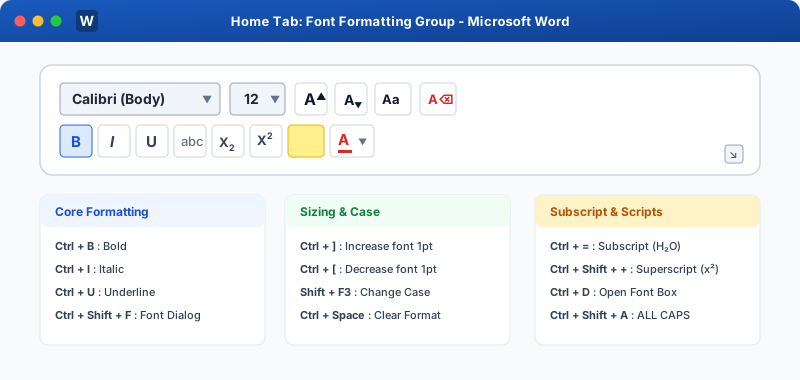
Text Styling and Effects in Microsoft WordClick to Zoom
Text Styling and Effects in Microsoft Word

Essential Character Formatting Shortcuts

EffectIconShortcutTypical Use Case
BoldBCtrl + BSection titles, key definitions, prominent metrics
ItalicICtrl + IBook titles, foreign terms (e.g., in vitro), quotes
Underline<u>U</u>Ctrl + UHyperlinks, form fill-in blank spaces, headers
Double Underline<u><u>U</u></u>Ctrl + Shift + DAccounting grand totals, formal legal agreements
Word-Only Underline<u>W</u>Ctrl + Shift + WUnderlines words only, omitting spaces
StrikethroughabcRibbon buttonDeprecated pricing, completed checklist items
Subscript$\text{X}_2$Ctrl + =Chemical formulas ($\text{H}_2\text{O}$, $\text{CO}_2$)
Superscript$\text{X}^2$Ctrl + Shift + +Math powers ($x^2 + y^2$), footnote citations ($^1$)

Mastering the Change Case Tool (Shift + F3)

Instead of retyping text accidentally typed in CAPS or lowercase, use the Change Case button or press Shift + F3 to toggle between:

  1. 1
    Sentence case: Capitalizes only the first letter of the first word in each sentence.
  2. 2
    lowercase: Changes all selected characters to lowercase letters.
  3. 3
    UPPERCASE: Capitalizes every single selected letter.
  4. 4
    Capitalize Each Word (Title Case): Capitalizes the initial letter of every word (ideal for article headlines).
  5. 5
    tOGGLE cASE: Reverses the casing of each letter in the selection.
Pro Tip
Selecting text and repeatedly pressing Shift + F3 cycles through lowercase -> UPPERCASE -> Title Case instantly!

Text Effects & Typography

Clicking the luminous blue A icon in the Font group gives access to modern vector effects:

  • Shadow: Adds subtle drop-shadows or offset depth behind letters.
  • Reflection: Generates mirrored surface reflections below the text.
  • Glow: Radiates soft colored ambient halos around letter edges.
  • Number Styles & Ligatures: Professional typographic ligatures connecting adjacent letter pairs like fi and fl.

Multiple Choice Questions

1. Which shortcut toggles between lowercase, UPPERCASE, and Title Case for selected text?

A. Ctrl + Shift + C B. Shift + F3 C. Alt + F3 D. Ctrl + F3 Answer: B Explanation: Shift + F3 is the dedicated shortcut for cycling through capitalization cases in MS Word.


2. What is the shortcut to apply Subscript formatting (e.g. for writing H₂O)?

A. Ctrl + = B. Ctrl + Shift + + C. Alt + S D. Ctrl + 2 Answer: A Explanation: Ctrl + = applies Subscript, dropping characters below the baseline.


3. What is the shortcut to apply Superscript formatting (e.g. for writing x²)?

A. Ctrl + = B. Ctrl + Shift + + C. Ctrl + Up Arrow D. Alt + Shift + S Answer: B Explanation: Ctrl + Shift + + (or Ctrl + Shift + =) applies Superscript, raising characters above the baseline.


4. Which shortcut underlines only words while leaving the spaces between them blank?

A. Ctrl + U B. Ctrl + Shift + W C. Ctrl + Alt + U D. Shift + Underline Answer: B Explanation: Ctrl + Shift + W underlines words only, keeping spaces between words clean.


5. Which shortcut applies a Double Underline to selected text?

A. Ctrl + U twice B. Ctrl + Shift + D C. Alt + D D. Ctrl + D Answer: B Explanation: Ctrl + Shift + D applies a professional double underline to selected text.


Next Lesson

Clear Formatting & Styles

Continue learning with hands-on practice, examples, and exercises in the upcoming topic.

Related Lessons

Practice Quiz

Test your understanding of this lesson with 5 questions. Each question has one correct answer.

PrevNext