Text Functions (LEFT, RIGHT, MID, TRIM, LEN)
Raw data imported from ERPs, CRM platforms, and web portals often arrives messy, unformatted, and padded with invisible spaces. Excel’s core text manipulation functions allow you to clean, parse, and extract meaningful sub-strings with surgical accuracy.
1. String Extraction: LEFT, RIGHT, and MID
These three functions extract character sequences from specific positions within a text string:
Practical Examples:
- Product Code: 'INV-98234-US'
- '=LEFT(A2, 3)' -> Returns 'INV' (The invoice prefix)
- '=RIGHT(A2, 2)' -> Returns 'US' (The country code)
- '=MID(A2, 5, 5)' -> Returns '98234' (Starts at character 5, extracts 5 characters)
2. Text Hygiene: TRIM, CLEAN, and LEN
A. TRIM: Eliminating Hazardous Invisible Spaces
When VLOOKUP fails with '#N/A' on records that look identical, trailing or double spaces are almost always to blame.
- '=TRIM(text)' strips all leading spaces, trailing spaces, and collapses multiple consecutive spaces into a single space.
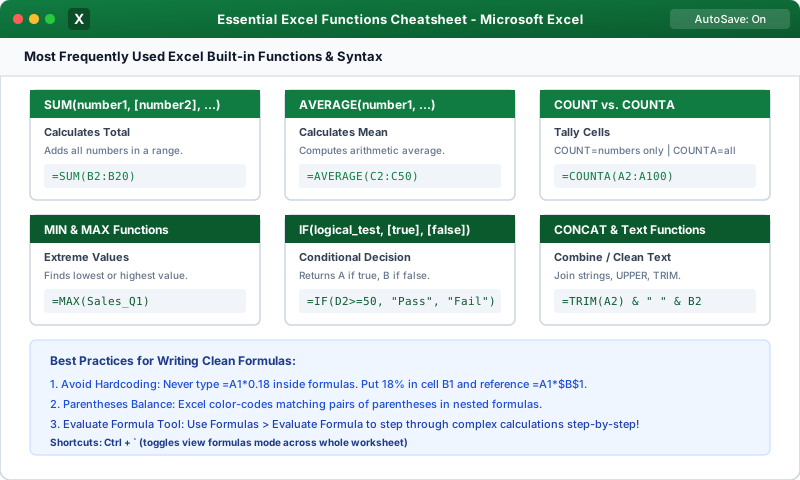
- Example: '=TRIM(" Acme Corp ")' -> Returns "Acme Corp".
B. LEN: Measuring String Length
- '=LEN(text)' returns the total count of characters, including letters, digits, punctuation, and spaces.
- Example: '=LEN("A101")' -> Returns 4.
- Useful for verifying data integrity, such as checking if tax IDs or phone numbers have the required digit count.
C. Case Conversion: UPPER, LOWER, and PROPER
- '=UPPER(text)': Converts all letters to uppercase ('"JOHN"').
- '=LOWER(text)': Converts all letters to lowercase ('"john"').
- '=PROPER(text)': Capitalizes the first letter of each word ('"John Smith"').
3. Dynamic Substring Slicing with SEARCH & FIND
What if the text length varies (e.g., names like 'Sara Connor' vs. 'Alexander Hamilton')?
- '=SEARCH(find_text, within_text)': Locates the character position of a delimiter (case-insensitive).
- Extracting First Name dynamically:
(Finds the space position, subtracts 1, and takes everything to the left!)
Multiple Choice Questions
1. What will the formula '=LEFT("EXCEL2026", 5)' return?
A. 2026 B. EXCEL C. CEL20 D. E Answer: B Explanation: LEFT extracts the first 5 characters starting from the left of the string, returning 'EXCEL'.
2. If cell A1 contains ' Report 2026 ' with three leading and three trailing spaces, what does '=TRIM(A1)' return?
A. 'Report' B. 'Report 2026' (all leading and trailing spaces removed) C. 'Report2026' D. 0 Answer: B Explanation: TRIM removes all leading and trailing spaces, leaving only single spaces between words: 'Report 2026'.
3. Which formula extracts four characters from the text 'ABC-9950-XYZ' starting from the fifth character?
A. =LEFT(A1, 4) B. =RIGHT(A1, 4) C. =MID(A1, 5, 4) D. =LEN(A1, 5, 4) Answer: C Explanation: =MID(text, start_num, num_chars) starts at character position 5 and extracts 4 characters, resulting in '9950'.
4. What is the result of '=LEN("New York")'?
A. 7 B. 8 C. 2 D. 6 Answer: B Explanation: 'New' (3) + space (1) + 'York' (4) = 8 characters total. LEN counts spaces as valid characters.
5. Which function converts the text 'robert smith' into 'Robert Smith'?
A. UPPER B. PROPER C. CAPITAL D. SENTENCE Answer: B Explanation: The PROPER function capitalizes the first letter of each word in a text string while setting all other letters to lowercase.
Date & Time Functions (TODAY, NOW, DATEDIF, NETWORKDAYS)
Continue learning with hands-on practice, examples, and exercises in the upcoming topic.
Related Lessons
| Previous Lesson | Next Lesson |
|---|---|
| Using Custom Formulas in Conditional Formatting | Date & Time Functions (TODAY, NOW, DATEDIF, NETWORKDAYS) |
Practice Quiz
Test your understanding of this lesson with 5 questions. Each question has one correct answer.