MSK Institute • Shikohabad
Loading Page Content...
Preparing courses, live labs, and learning resources.सामग्री लोड हो रही है, कृपया प्रतीक्षा करें...
Connecting serverPlease wait...
💻 Practical Labs🚀 Free Demo📜 Verified Certificates
Preparing courses, live labs, and learning resources.सामग्री लोड हो रही है, कृपया प्रतीक्षा करें...
Professional Excel users rarely touch the mouse during intensive data operations. Mastering keyboard navigation, selection shortcuts, and formula editing dramatically accelerates your productivity and allows you to work effortlessly across massive datasets containing hundreds of thousands of rows.
When working with large tables, scrolling with your mouse wheel is slow and error-prone. The following keyboard combinations allow instant traversal across worksheets:
| Keyboard Shortcut | Action Description | Best Used For |
|---|---|---|
| Ctrl + Arrow Keys | Jumps directly to the last populated cell before an empty boundary in that direction. | Reaching the bottom or end of massive datasets instantly. |
| Ctrl + Shift + Arrow Keys | Selects all contiguous populated cells from the current position to the edge. | Highlighting entire columns or rows for formatting or formulas. |
| Ctrl + Home | Jumps directly to cell A1. | Returning to the top-left origin of any worksheet. |
| Ctrl + End | Jumps to the bottom-rightmost used cell of the active sheet. | Auditing the true active range and spotting ghost rows/columns. |
| Ctrl + Page Down / Page Up | Switches to the next or previous worksheet tab. | Rapid navigation across multi-sheet workbooks without clicking tabs. |
| Ctrl + Spacebar | Selects the entire active column. | Applying column-wide formats or deleting columns. |
| Shift + Spacebar | Selects the entire active row. | Inserting or deleting complete rows. |
| Ctrl + Shift + L | Toggles AutoFilter arrows on and off across the header row. | Instant filtering without navigating to the Data tab. |
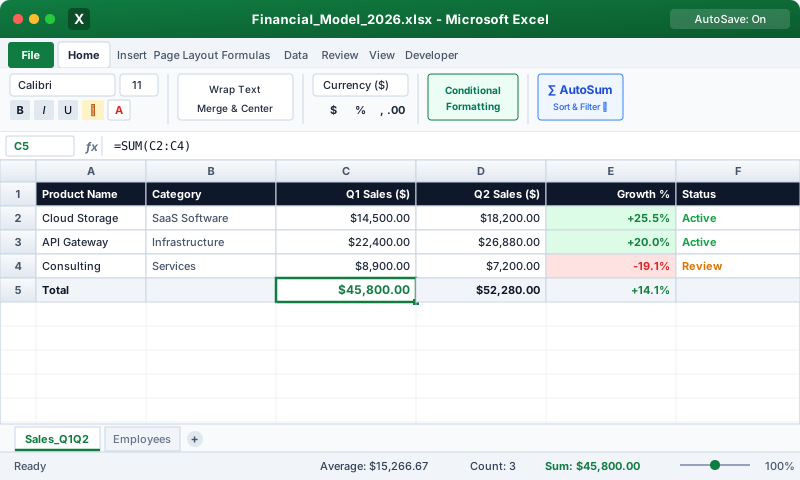 Click to Zoom
Editing formulas quickly requires familiarity with dedicated function keys and edit-mode commands:
Beyond standard arrows, Excel offers sophisticated selection engines:
Continue learning with hands-on practice, examples, and exercises in the upcoming topic.
| Previous Lesson | Next Lesson |
|---|---|
| None | Absolute and Mixed Cell References ($A$1) |
Test your understanding of this lesson with 5 questions. Each question has one correct answer.