Professional spreadsheets communicate authority and clarity through deliberate visual hierarchy. Disorganized fonts, inconsistent cell borders, and garish background fills make sheets difficult to read, while structured typographic systems and clean alignments guide audience comprehension.
Click to Zoom
Cell Formatting & Number Formats
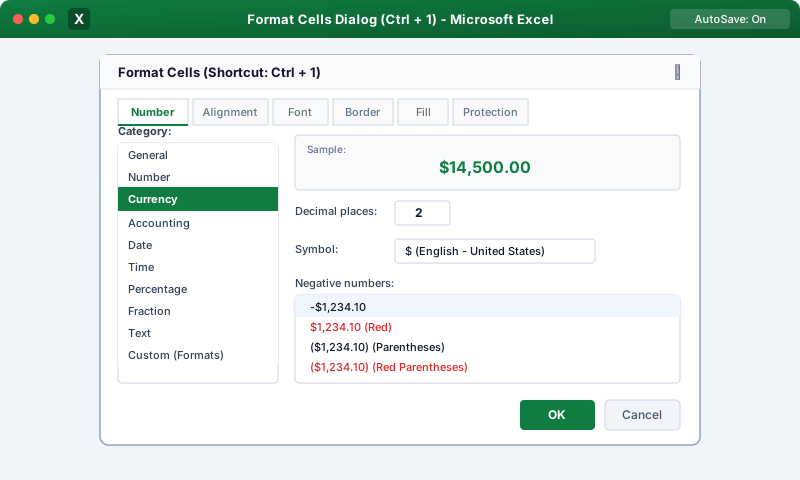
The Format Cells Dialog Box (Ctrl + 1)
While the Home tab provides quick access buttons, pressing Ctrl + 1 summons the Format Cells dialog, the master control panel for cell aesthetics:
Font Tab: Set Font Family (e.g., Segoe UI, Calibri, Aptos), Font Style (Bold, Italic), Size (10 pt - 14 pt), Underline, and Color.
Alignment Tab: Configure Horizontal alignment (Left, Center, Right), Vertical alignment (Top, Center, Bottom), Text Orientation (angling text diagonally), and Text Control options.
Border Tab: Choose line style (thin, dashed, thick, double-underline for accounting totals) and border color before clicking border placement buttons (Outline, Inside, Top, Bottom).
Fill Tab: Solid background fills, linear gradients, and background patterns.
Alignment & Text Control Essentials
1. Wrap Text
By default, long text strings overflow into adjacent blank cells, or get cut off if adjacent cells contain data.
Click Home > Wrap Text (or press Alt + H + W).
Excel increases row height automatically, wrapping sentences across multiple lines within the cell's existing column width.
2. Merge & Center vs. Center Across Selection
To center a prominent report title across columns A through F:
Merge & Center: Fuses cells A1:F1 into a single large cell.
Warning: Merged cells cause major problems—they break column sorting, interfere with VBA macros, and obstruct AutoFill selection!
The Professional Alternative (Center Across Selection):
1
Highlight cells A1:F1.
2
Press Ctrl + 1 and go to the Alignment tab.
3
In the Horizontal dropdown, select Center Across Selection!
4
The title centers across the columns visually, but every individual cell remains separate and unmerged, preserving sorting and formula navigation!
Accounting Borders Standard
Financial models adhere to universal accounting border conventions:
Subtotal Lines: A single thin border on the top edge of the cell indicates a mathematical subtotal.
Grand Total Lines (Top Border and Double Bottom Border): A single thin line across the top with a double bottom border beneath signifies the finalized grand total.
Format Painter (Ctrl + Shift + C / Ctrl + Shift + V)
To copy formatting from one cell to others:
1
Select the formatted cell.
2
Click the Format Painter brush icon on the Home tab (or press Ctrl + Shift + C).
3
Click the target cell to paint the exact font, color, border, and number format.
4
Double-Click Trick: Double-clicking the Format Painter icon locks it in active mode, letting you click multiple non-adjacent cells across your workbook until you press Esc!
Interactive Quiz• Knowledge Check
Multiple Choice Questions
Question 1
Which universal keyboard shortcut opens the complete "Format Cells" dialog box in Microsoft Excel?
Question 2
Why do professional financial modelers avoid using "Merge & Center" for report headers?
Question 3
Where in the Format Cells dialog can you configure "Center Across Selection" without merging cells?
Question 4
What visual border combination is traditionally used in corporate financial statements to denote a finalized grand total?
Question 5
How can you lock the "Format Painter" so you can paint formatting onto multiple scattered cells without re-clicking the brush icon each time?
Next Lesson
Number Formats (Currency, Percentage, Dates)
Continue learning with hands-on practice, examples, and exercises in the upcoming topic.
 Click to Zoom