Microsoft Excel is the world's most ubiquitous spreadsheet software, engineered for data calculation, tabular organization, financial modeling, statistical analysis, and visual reporting. Becoming fluent with the Excel interface is your first essential step toward mastering data productivity.
Click to Zoom
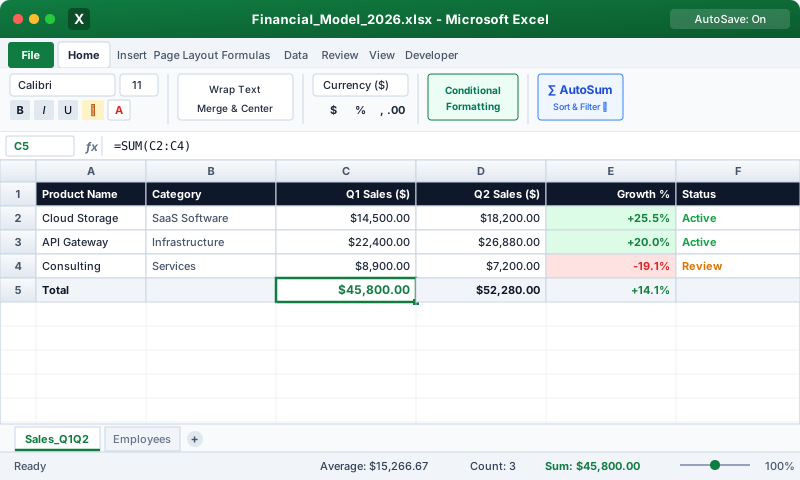
Excel Interface Overview
The Primary Anatomical Elements of Excel
When you open a workbook in Microsoft Excel, the application window is divided into several specialized functional zones:
1. The Title Bar & Quick Access Toolbar (QAT)
Title Bar: Displays the name of the active workbook (e.g., Book1 - Excel) and shows whether AutoSave is active on OneDrive or SharePoint.
Quick Access Toolbar (QAT): Located at the top-left (or beneath the Ribbon). Provides one-click access to Save (Ctrl + S), Undo (Ctrl + Z), and Redo (Ctrl + Y).
2. The Ribbon System
Organized into core workflow tabs:
File: Opens Backstage View for new workbooks, templates, opening, saving, printing, and exporting to PDF.
Home: Houses day-to-day essentials: Clipboard, Font formatting, Cell Alignment, Number Formats, Styles (Conditional Formatting, Format as Table), Cells (Insert/Delete), and Editing (AutoSum, Fill, Clear, Sort & Filter).
Formulas: Central repository for Excel's 450+ functions categorized by Math, Statistical, Text, Date & Time, Lookup & Reference, and Formula Auditing tools.
Data: Data import (Power Query / Get Data), Sorting, Filtering, Data Tools (Text to Columns, Flash Fill, Remove Duplicates, Data Validation), and What-If Analysis.
Name Box: Located on the left directly above column A. Displays the active cell address (e.g., C5) or the name of a defined range. Typing an address here (e.g., Z100) and pressing Enter instantly jumps the cursor to that cell!
Formula Bar: Located directly to the right of the Name Box. Displays the true underlying mathematical formula, function, or raw value stored inside the active cell, even if the cell is displaying a calculated or formatted result.
4. The Spreadsheet Grid (Rows, Columns, Cells)
Column Headers: Alphabetical letters across the top (A through XFD, totaling 16,384 columns).
Row Headers: Numerical integers down the left side (1 through 1,048,576, totaling 1,048,576 rows).
Cell: The rectangular intersection of a column and a row, identified by its coordinate address (e.g., B4 is Column B, Row 4).
Active Cell Indicator: A thick dark-green border surrounding the currently selected cell, featuring the small green AutoFill handle square at its bottom-right corner.
5. Sheet Tabs & Status Bar
Sheet Tabs: Located at the bottom left. Click sheet tabs (Sheet1, Sheet2) to switch worksheets, right-click to rename or color-code tabs, or click + to append new sheets.
Status Bar: Located at the bottom. Displays operational mode (Ready, Edit, Enter) and automatically calculates instant statistical summaries for any selected numerical cells (Average, Count, and Sum) without writing a formula!
Top Essential Excel Keyboard Shortcuts
Shortcut
Description
Ctrl + N
Create a new blank workbook
Ctrl + O
Open an existing workbook
Ctrl + S
Save the active workbook
Ctrl + W
Close current workbook
F12
Open Save As dialog
Ctrl + Z
Undo last action
Ctrl + Y
Redo last action
Ctrl + F1
Minimize or restore the Ribbon
F4
Repeat the last action (or toggle absolute references in formulas)
Interactive Quiz• Knowledge Check
Multiple Choice Questions
Question 1
What does the Name Box display in Microsoft Excel?
Question 2
How many rows and columns exist in a modern Microsoft Excel worksheet (.xlsx)?
Question 3
What is the fundamental difference between what appears inside a cell and what appears in the Formula Bar?
Question 4
Which area of the Excel interface calculates instant statistics (Average, Count, Sum) for highlighted numbers without typing any formulas?
Question 5
Which keyboard shortcut immediately collapses or pins the Excel Ribbon to expand visible worksheet area?
Next Lesson
Understanding Workbooks and Worksheets
Continue learning with hands-on practice, examples, and exercises in the upcoming topic.
 Click to Zoom