Capstone: Polishing the Interactive Dashboard with Macro Automation0%

Capstone: Polishing the Interactive Dashboard with Macro Automation

Beginner12 min readUpdated: Jul 11, 2026
Study Materials

Capstone: Polishing the Interactive Dashboard with Macro Automation

In this final capstone lesson of the MS Excel Advanced Track, we assemble the visual presentation layer of our Executive Business Performance Dashboard, integrate universal slicers, and implement a VBA Macro Automation Button that resets all filters and generates a PDF executive report with a single click.


1. Assembling the Executive Presentation Layer

On your clean Dashboard tab:

  1. 1
    Turn off Gridlines and Headings (View tab).
  2. 2
    Position 4 Rounded Rectangle KPI Cards across the top:
  • Gross Revenue | Total Profit | Operating Margin % | YoY Growth %
  • Embed linked text boxes pointing to our staging calculation formulas.
  1. 1
    Insert Visualizations:
  • Sales vs. Prior Year Trend: Dual-Axis Combo Chart (Current Year Sales as Deep Navy Columns; Prior Year as Orange Line).
  • Regional Segment Matrix: Clustered Bar Chart.
  • Category Leaderboard: Formatted table with embedded Gradient Data Bars.
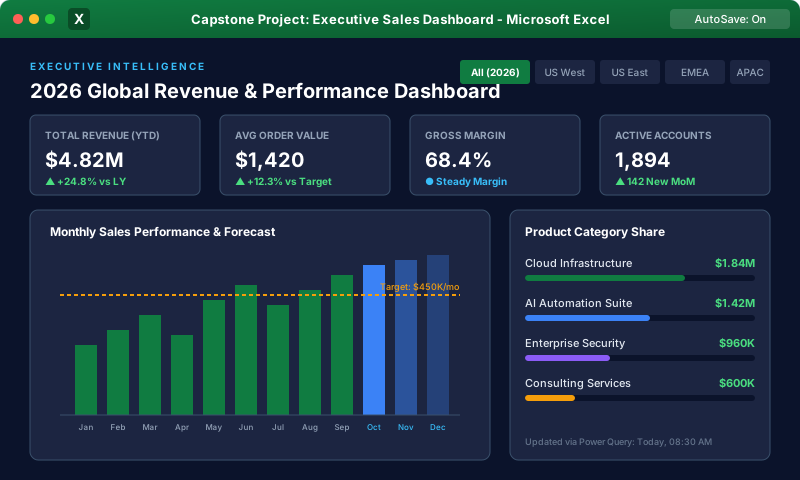
Final Executive Business Performance DashboardClick to Zoom
Final Executive Business Performance Dashboard

2. Universal Slicers Integration

  1. 1
    Insert Slicers for Calendar Year, Region, and Customer Segment.
  2. 2
    Format slicers with 3 horizontal columns; dock them neatly in the dashboard header.
  3. 3
    Configure Report Connections on every slicer, checking PT_SummaryKPIs, PT_MonthlyPerformance, PT_RegionalProfitability, and PT_CategoryLeaderboard.

Every chart, card, and metric now updates simultaneously in real time!


3. Macro Automation: The "Reset Filters & Export PDF" Button

To provide executive users with seamless control:

  1. 1
    Press Alt + F11 to open the VBA Editor > click Insert > Module.
  2. 2
    Write the following automation subroutine:
VBA
Sub ResetDashboardAndExportPDF()
Dim sc As SlicerCache
Dim wb As Workbook
Set wb = ActiveWorkbook
' Optimize execution speed
Application.ScreenUpdating = False
' 1. Clear all active slicer filters across the workbook
For Each sc In wb.SlicerCaches
sc.ClearManualFilter
Next sc
' 2. Export Dashboard tab directly as an Executive PDF
Sheets("Dashboard").ExportAsFixedFormat _
Type:=xlTypePDF, _
Filename:=wb.Path & "Executive_Sales_Summary_" & Format(Date, "yyyymmdd") & ".pdf", _
Quality:=xlQualityStandard, _
IncludeDocProperties:=True, _
IgnorePrintAreas:=False, _
OpenAfterPublish:=True
Application.ScreenUpdating = True
MsgBox "Filters successfully reset and Executive PDF generated!", vbInformation, "Success"
End Sub
  1. 1
    On the Dashboard header, insert a modern Rounded Shape labeled: "Reset & Export PDF".
  2. 2
    Right-click the shape > Assign Macro... > choose ResetDashboardAndExportPDF.
  3. 3
    Save the workbook as Executive_Business_Dashboard.xlsm.

Congratulations! You have completed the MS Excel Advanced Track, mastering complex formula logic, dynamic arrays, advanced Pivot modeling, Power Query data pipelines, Power Pivot relational architecture, DAX measures, executive dashboard UI design, and VBA macro automation!


Multiple Choice Questions

1. What does the VBA loop 'For Each sc In wb.SlicerCaches: sc.ClearManualFilter: Next sc' accomplish?

A. Deletes all slicers from the workbook B. Resets and clears all active filter selections across every slicer in the entire workbook simultaneously C. Converts slicers into pie charts D. Closes Excel Answer: B Explanation: Iterating through the SlicerCaches collection and executing ClearManualFilter clears all active filter selections across the entire model in a fraction of a second.


2. Which VBA method exports an Excel worksheet directly into a high-resolution PDF document?

A. Sheets("Name").SaveAsPDF B. Sheets("Name").ExportAsFixedFormat Type:=xlTypePDF, Filename:=... C. Application.PrintPDF D. File.Convert("PDF") Answer: B Explanation: The 'ExportAsFixedFormat' method with parameter 'xlTypePDF' exports the designated worksheet into a PDF document.


3. What file extension must be used when saving our finalized Capstone Dashboard containing the VBA automation button?

A. .xlsx B. .xlsm (or .xlsb) C. .txt D. .html Answer: B Explanation: Any workbook containing executable VBA macros must be saved with the .xlsm (Macro-Enabled) or .xlsb (Binary) file format.


4. What is the comprehensive technological workflow utilized throughout this three-part Capstone Project?

A. Only manual typing B. Power Query (ETL) -> Power Pivot (Star Schema Data Model) -> DAX (Measures) -> Pivot Tables/Charts -> Dashboard UI -> VBA (Automation) C. Microsoft Word Mail Merge D. Basic conditional formatting only Answer: B Explanation: The capstone synthesizes Power Query data pipelines, relational Star Schema data models, DAX measures, Pivot visualizations, executive UI architecture, and VBA automation.


5. Why is 'Application.ScreenUpdating = False' included at the beginning of the automation macro?

A. To turn off the computer monitor B. To freeze screen redraws, preventing visual flickering and drastically accelerating execution speed C. To prevent other users from saving D. It is mandatory for PDF generation Answer: B Explanation: Suppressing screen redraws during macro execution eliminates visual flickering and significantly speeds up macro processing.


Related Lessons

Practice Quiz

Test your understanding of this lesson with 5 questions. Each question has one correct answer.

Prev