XLOOKUP: The Modern Flexible Lookup Function0%

XLOOKUP: The Modern Flexible Lookup Function

Beginner12 min readUpdated: Jul 11, 2026
Study Materials

XLOOKUP: The Modern Flexible Lookup Function

Introduced to replace VLOOKUP, HLOOKUP, and standard INDEX/MATCH in modern Excel (Office 365 and Excel 2021+), XLOOKUP is one of the most powerful and versatile functions ever added to the spreadsheet engine.


1. Why XLOOKUP Replaces VLOOKUP and HLOOKUP

Visual Architecture Blueprint
+-----------------------------------+-----------------------------------+
| Legacy VLOOKUP                    | Modern XLOOKUP                    |
+-----------------------------------+-----------------------------------+
| Can only look to the right        | Looks Left, Right, Up, and Down   |
| Requires fragile col_index_num    | Uses direct range selections      |
| Defaults to dangerous Approx Match| Defaults to SAFE Exact Match (0)  |
| Breaks when columns are inserted  | Resilient to column insertions    |
| Needs nested IFERROR to catch #N/A| Built-in [if_not_found] parameter|
+-----------------------------------+-----------------------------------+
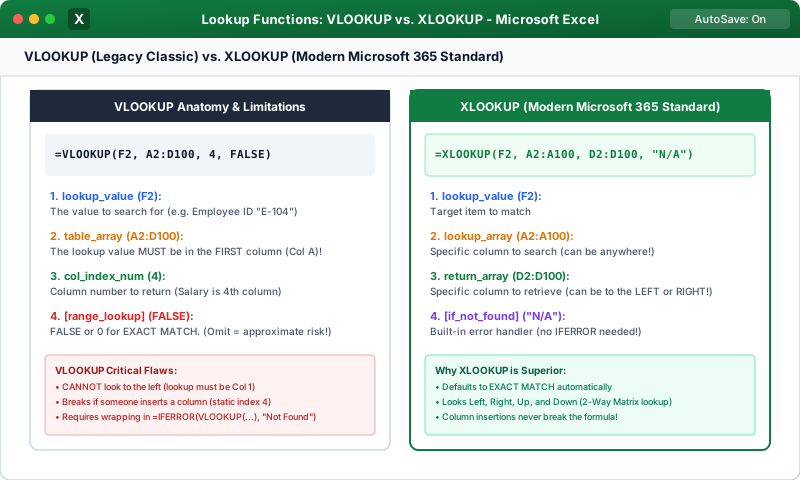
XLOOKUP Architecture and FeaturesClick to Zoom
XLOOKUP Architecture and Features

2. Complete Anatomy of XLOOKUP

XLOOKUP accepts up to six parameters, though only the first three are mandatory:

EXCEL
Syntax:
=XLOOKUP(lookup_value, lookup_array, return_array, [if_not_found], [match_mode], [search_mode])
Output
Parameter Guide:
1. lookup_value : What you are looking for (e.g., A2).
2. lookup_array : The single column or row to search (e.g., Employees[ID]).
3. return_array : The column or row containing the results (e.g., Employees[Salary]).
4. [if_not_found] : Clean fallback message (e.g., "Not Found") eliminating IFERROR!
5. [match_mode] : 0 = Exact (Default), -1 = Exact or next smaller, 1 = Exact or next larger, 2 = Wildcard.
6. [search_mode] : 1 = First-to-last (Default), -1 = Last-to-first (Bottom-up!), 2 = Binary search.

3. Groundbreaking Capabilities of XLOOKUP

A. Simple Left and Right Lookups with Built-In Fallback

Look up customer ID in Column D and return Customer Name in Column A (Left lookup):

EXCEL
=XLOOKUP(G2, D2:D100, A2:A100, "Customer Not Found")

Notice: No column numbers, no '$' column offset errors, and if missing, it displays "Customer Not Found" automatically!

B. Returning Multiple Columns in a Single Formula (Spill Array)

Need to pull Name, Department, and Salary simultaneously?

EXCEL
=XLOOKUP(G2, D2:D100, A2:C100)

Because 'return_array' spans three columns (A:C), XLOOKUP automatically spills all three values across three adjacent cells horizontally from a single formula!

C. Bottom-to-Top Search (Search Mode -1)

In transaction logs, the newest entry for an account is at the bottom of the table. Standard VLOOKUP only finds the first entry at the top. By setting search_mode to -1:

EXCEL
=XLOOKUP(AccountID, A2:A1000, C2:C1000, , , -1)

XLOOKUP scans from the bottom up, instantly retrieving the customer’s latest transaction!


Multiple Choice Questions

1. What is the default match mode in XLOOKUP if you leave the 5th argument blank?

A. Approximate match B. Exact match C. Wildcard match D. Regular expression Answer: B Explanation: Unlike VLOOKUP, which defaulted to approximate match, XLOOKUP defaults safely to an exact match (0).


2. How does XLOOKUP eliminate the need to wrap formulas inside IFERROR?

A. It never makes mistakes B. It includes a built-in 4th argument [if_not_found] where you can specify custom fallback text C. It converts errors into zero automatically D. It opens an error-logging macro Answer: B Explanation: The optional 4th argument [if_not_found] defines what to display if the lookup value is not located, eliminating redundant IFERROR wrappers.


3. Which search mode allows XLOOKUP to scan a dataset from the bottom up to retrieve the most recent transaction?

A. 1 B. 0 C. -1 D. 2 Answer: C Explanation: Setting search_mode to -1 instructs XLOOKUP to search in reverse order (from the last item to the first item).


4. What happens if the 'return_array' in an XLOOKUP formula covers three columns (e.g., B2:D100)?

A. It causes a #VALUE! error B. It automatically spills all three column values across three adjacent cells horizontally C. It sums the three columns together D. It only returns the first column Answer: B Explanation: In modern dynamic array Excel, XLOOKUP spills values across adjacent columns if the return array spans multiple columns.


5. Can XLOOKUP search horizontally across rows as well as vertically down columns?

A. No, XLOOKUP only searches vertically B. Yes, XLOOKUP operates in any direction, effectively replacing both VLOOKUP and HLOOKUP C. Only if data is converted to an XML schema D. Only on 64-bit operating systems Answer: B Explanation: XLOOKUP is orientation-agnostic; passing a horizontal row as lookup_array searches horizontally, while a vertical column searches vertically.


Next Lesson

Array Formulas & Dynamic Arrays (FILTER, SORT, UNIQUE)

Continue learning with hands-on practice, examples, and exercises in the upcoming topic.

Practice Quiz

Test your understanding of this lesson with 5 questions. Each question has one correct answer.

PrevNext