Certificate & Invitation Template
Certificate & Invitation Template
Mini-Project 6: Automated Batch Certificate Generation
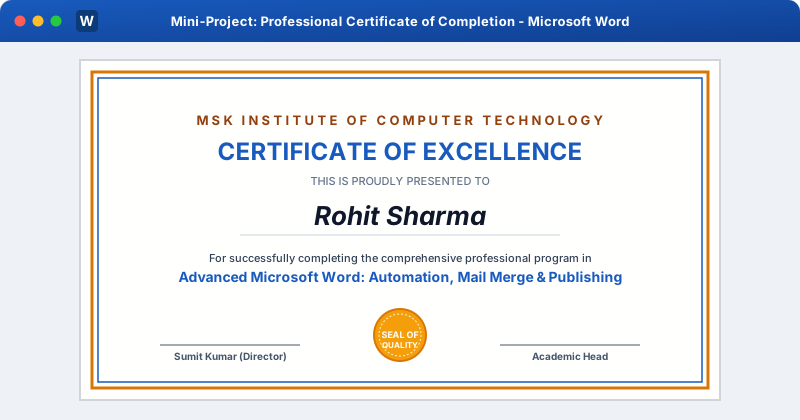
Generating course completion certificates individually for 1,000 graduating students is slow and error-prone. In this project, you will build an automated certificate production pipeline combining ornate landscape formatting with Mail Merge.
 Click to Zoom
Step 1: The Excel Student Graduate Callset (Graduates.xlsx)
Prepare an Excel file with fields:
Student_ID,Candidate_Name,Course_Name,Grade,Issue_Date,Certificate_No.- Save and close Excel.
Step 2: Landscape Canvas & Page Setup
- 1Open a new document (
Ctrl + N). - 2Set Orientation to Landscape.
- 3Set Margins to Narrow ($0.5\text{ in}$).
Step 3: Double Gold & Navy Page Border
- 1Go to Design > Page Borders:
- Style: Triple line border.
- Color: Metallic Gold (
#D97706). - Width: 3 pt.
- Click Options... > set Measure from: Text (ensures borders do not clip on printers!).
Step 4: Designing the Certificate Header & Hierarchy
- 1Institution Banner: 14pt Bold Uppercase Navy (
#185ABD) with wide tracking:
MSK INSTITUTE OF COMPUTER TECHNOLOGY
- 1Main Award Title: 28pt Bold Centered Navy:
CERTIFICATE OF PROFESSIONAL EXCELLENCE
- 1Formal Statement:
THIS IS PROUDLY CONFERRED UPON(11pt Muted Gray)
Step 5: Inserting Dynamic Mail Merge Fields
- 1Go to Mailings > Select Recipients > Use an Existing List... > select
Graduates.xlsx. - 2Student Name placeholder:
- Insert
<<Candidate_Name>>in 32pt Bold Script/Italic (Edwardian ScriptorMonotype Corsiva) in Deep Navy! - Draw a subtle horizontal line rule beneath the name.
- 1Description Paragraph:
- "For outstanding academic performance and successfully achieving Grade <<Grade>> in <<Course_Name>>."
- 1Certificate Metadata:
Certificate ID: <<Certificate_No>>|Issued: <<Issue_Date>>
Step 6: Decorative Gold Seal Badge & Signatures
- 1Insert a 32-point gold star shape centered at the bottom with text
SEAL OF EXCELLENCE. - 2Insert a 2-column borderless table for signatures:
- Left:
Sumit Kumar, Lead Director(with digital signature line). - Right:
Academic Council Head.
Step 7: Batch Printing 1,000 Certificates
- 1Click Preview Results to verify that Student #1, #2, and #3 render with elegant typography and correct course grades.
- 2Click Finish & Merge > Print Documents (or Edit Individual Documents).
- 3Word generates 1,000 individualized, publication-ready award certificates in under 10 seconds!
Multiple Choice Questions
1. Why is Mail Merge ideal for generating educational diplomas and certificates of completion?
A. It changes the paper size automatically B. It generates hundreds of unique student certificates with individual names and grades in seconds from an Excel file C. It creates 3D animations D. Certificates cannot be printed without Mail Merge Answer: B Explanation: Mail Merge merges an Excel student roster with an award template to batch produce hundreds of certificates.
2. What page orientation is standard for award certificates?
A. Portrait B. Landscape C. Vertical D. Square Answer: B Explanation: Landscape (horizontal) orientation is universally standard for framing diplomas and certificates.
3. Which setting in Page Borders Options ensures borders fit comfortably on home and office printers without clipping?
A. Measure from: Edge of page B. Measure from: Text C. Double margin D. Draft quality Answer: B Explanation: "Measure from: Text" calculates border positioning inward from text margins, preventing printer edge clipping.
4. In the certificate project, what font style was recommended for the dynamic student name field <<Candidate_Name>>?
A. Monospace font B. Script or Calligraphy font in large bold point size C. Courier New D. Small caps Answer: B Explanation: An elegant Script or Calligraphy font elevates the recipient's name with formal certificate flair.
5. Which command finalizes the batch merge to send all generated certificates directly to a high-speed color printer?
A. File > Save B. Finish & Merge > Print Documents C. Print Screen D. Export to PDF Answer: B Explanation: "Finish & Merge > Print Documents" sends the entire merged batch of certificates directly to the print spooler.
Related Lessons
| Previous Lesson | Next Lesson |
|---|---|
| Professional Report Template | None |
Practice Quiz
Test your understanding of this lesson with 5 questions. Each question has one correct answer.