MSK Institute • Shikohabad
Loading Page Content...
Preparing courses, live labs, and learning resources.सामग्री लोड हो रही है, कृपया प्रतीक्षा करें...
Connecting serverPlease wait...
💻 Practical Labs🚀 Free Demo📜 Verified Certificates
Preparing courses, live labs, and learning resources.सामग्री लोड हो रही है, कृपया प्रतीक्षा करें...
Microsoft PowerPoint is the industry-standard presentation graphics software used worldwide by business executives, educators, designers, and students to build persuasive, visually compelling slide shows. Understanding its user interface layout is your first crucial step toward creating professional presentations quickly and confidently.
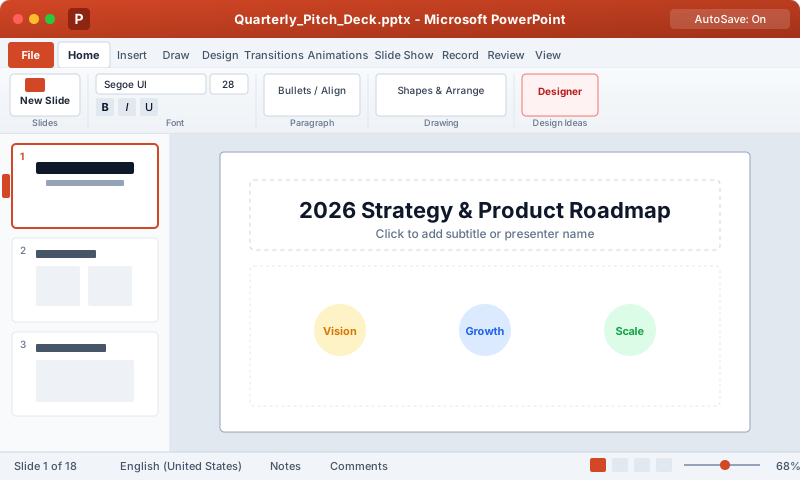 Click to Zoom
When you launch Microsoft PowerPoint and open a presentation, the workspace is organized into several distinct operational areas:
Presentation1 - PowerPoint) and your Microsoft 365 cloud sync status.Ctrl + S), Undo (Ctrl + Z), Redo (Ctrl + Y), and Start Slide Show from Beginning (F5).Alt + Q): Allows you to instantly search for any tool, feature, or help topic without navigating through tabs.The Ribbon across the top contains all PowerPoint commands grouped into logical tabs:
The vertical panel on the left displays numbered thumbnail previews of all slides in your deck. You can click any thumbnail to jump to it, drag thumbnails to reorder slides, or right-click to duplicate, delete, or add section headers.
The large center workspace represents the current slide. What you design on this canvas is exactly what your audience will see on the projector or screen.
Located directly beneath the slide canvas. Click the Notes button on the status bar to expand this pane. Text typed here serves as your private speaker notes during delivery and will not appear to your audience on the main display when using Presenter View.
Shows current slide position (e.g., "Slide 1 of 12"), proofing language, accessibility warnings, View switcher buttons (Normal, Slide Sorter, Reading View, Slide Show), and the Canvas Zoom slider.
| Shortcut | Action Description |
|---|---|
| Ctrl + N | Create a new blank presentation |
| Ctrl + O | Open an existing presentation file |
| Ctrl + S | Save current presentation changes |
| Ctrl + M | Insert a new slide after current slide |
| Ctrl + D | Duplicate selected object or selected slide |
| F5 | Start Slide Show from slide 1 |
| Shift + F5 | Start Slide Show from the currently active slide |
| Esc | Exit Slide Show view or close dialogs |
| Ctrl + F1 | Collapse or pin the Ribbon |
| Alt + Q | Focus the Search / "Tell Me" box |
You can add any command you use repeatedly directly to the QAT:
Continue learning with hands-on practice, examples, and exercises in the upcoming topic.
| Previous Lesson | Next Lesson |
|---|---|
| None | Creating, Opening, Saving & Backstage View |
Test your understanding of this lesson with 5 questions. Each question has one correct answer.